This guide runs through how to reset a forgotten password or update your current password in Gather 2.0.
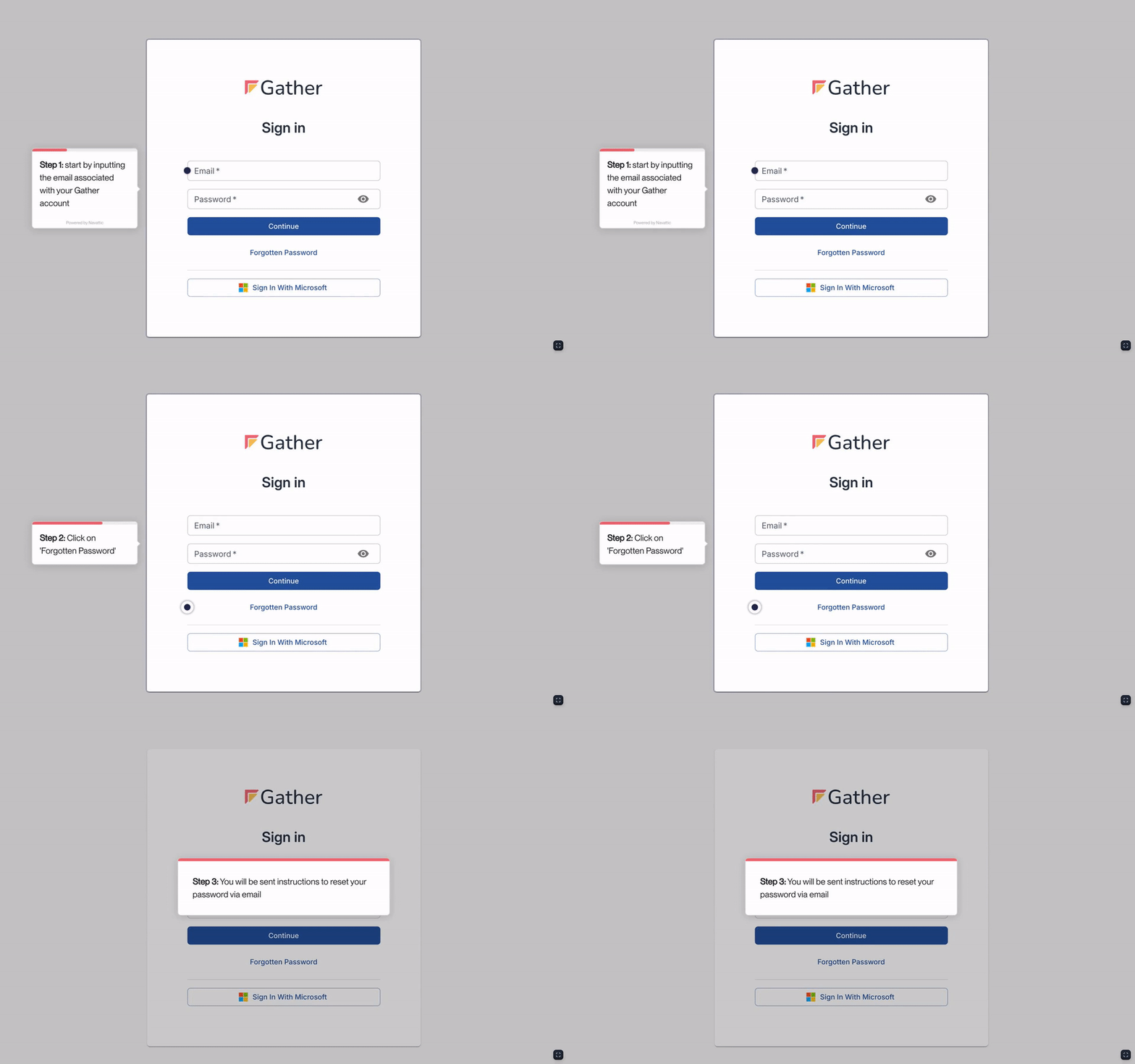
Navigate to the Gather sign-in page (https://www.gatherinsights.com/)
Enter your email address in the designated field and click the ‘Forgotten Password’ button to the bottom of the screen.
You'll receive an email with a ‘Reset Password’ link.
Click the link to create a new password.
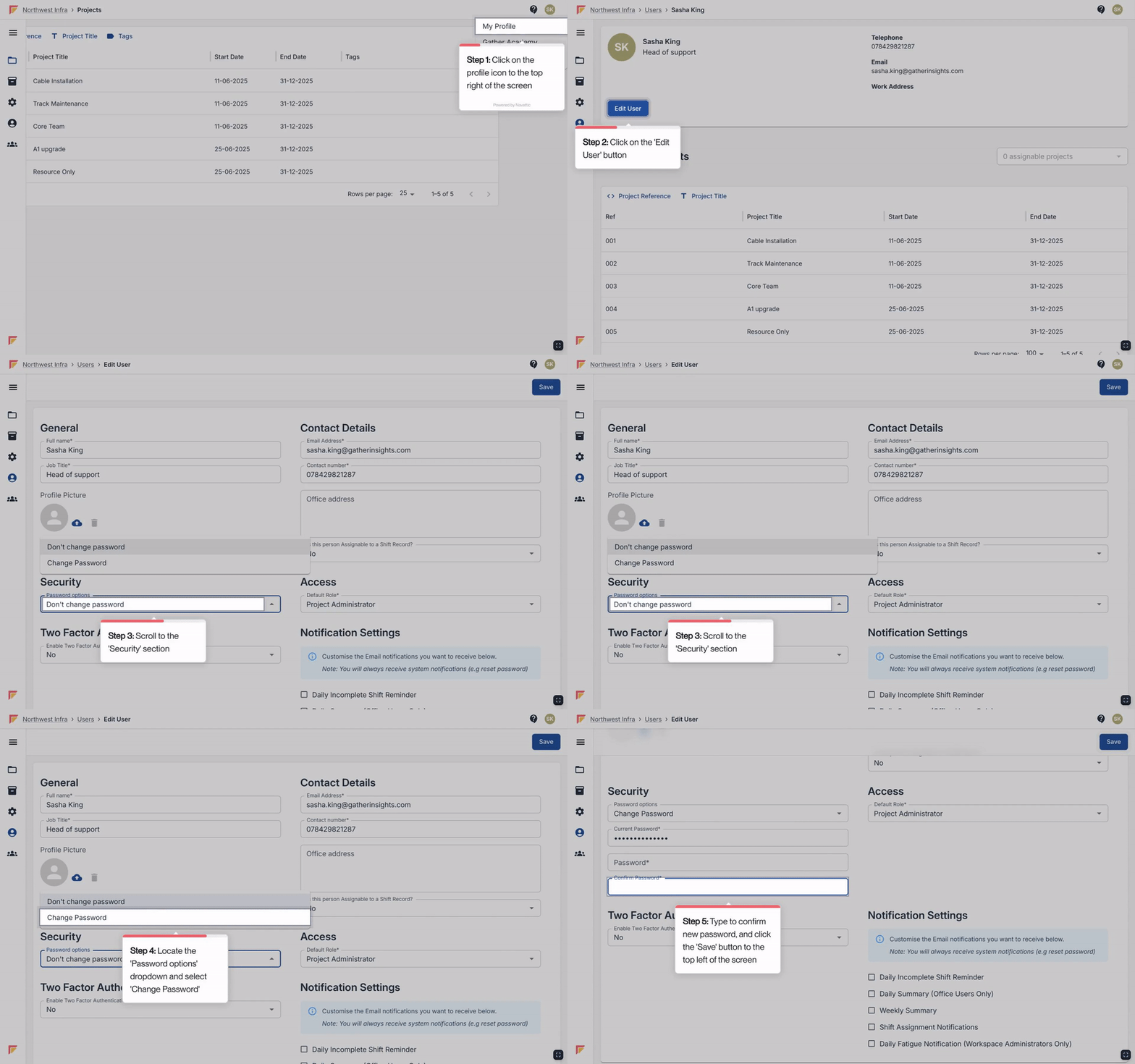
Click on your profile icon in the top right corner of the Gather platform and select ‘My Profile’.
Click the the ‘Edit User’ button to the left of your profile page.
Scroll down to the ‘Security’ section. Under ‘Password Options’, select ‘Change Password’.
Enter and confirm your new password in the designated fields.
Click ‘Save’ to the top right of the screen to confirm the update to your password.
