This article runs through how locking and approval work on your Shift Records, including who can use each feature and what happens when a record is locked.
In Gather, locking and approval are two separate features. Some teams use both together, and some use locking on its own. Both are designed to protect the data in your Shift Records once they have been reviewed or finalised.
Please note: locking and approval each require specific permissions. If you don't have access to these features and think you should, contact your Workspace Administrator. Our User Permissions article can be found at the following link:
User Permissions
Full user permissions reference for all roles across every section of Gather.
Locking is the technical process that places a Shift Record into view-only mode for all Users. It is a simple freeze, with no commercial sign-off recorded.
You can still view everything in the record, navigate between sections, and copy text, but you cannot make changes.
Available from the three-dot 'Actions' menu on a Shift Record row on our web application.
Useful for freezing a record for review, preventing edits during an investigation, or temporarily protecting data.
To lock or unlock a Shift Record, your Workspace Administrator needs to enable the lock/unlock permission on your account.
Approval is a formal sign-off on a Shift Record. When a Commercial Administrator approves a record, it is automatically locked. The approver's name and the date of approval are recorded on the Shift Record row, creating an auditable trail.
Only available to Users with the Commercial Administrator permission, and can only be done from the Web App.
Records the approver's name and date on the Shift Record row in the dashboard.
Creates a commercially auditable trail of sign-off.
The key difference is that approval keeps track of who signed off the record and when, while locking on its own does not.
How they interact:
Approving a Shift Record automatically locks it, so the entire record becomes view-only.
A manual unlock (via the inline permission) cannot override an approval on its own.
Every approval triggers a lock, but not every lock involves an approval.
You cannot manually unlock an approved record - the approval must be revoked first by a Commercial Administrator.
Locking, unlocking, and approval involve separate permissions.
View a locked Shift Record (read-only): all Users, including client or third-party Users.
Lock or unlock a Shift Record: any User granted the lock/unlock inline permission (see note below).
Approve or revoke an approval: Commercial Administrators only, on the Web App.
Inline permission means the ability to lock or unlock is not tied to a specific role. Instead, a Workspace Administrator grants it on a per-user basis. Any User of any role can be given this permission, but it must be explicitly enabled. It is not on by default.
All Users can view a locked Shift Record in read-only mode. No User can edit a locked record, regardless of their role.
Please note: if you do not see 'Lock Shift Record' or 'Unlock Shift Record' in the Actions menu, your User account has not been granted the inline permission. Contact your Workspace Administrator to request access.
Any User with the Commercial Administrator permission can approve a Shift Record from the Shift Record list on the Web App. Records can be approved at any status.
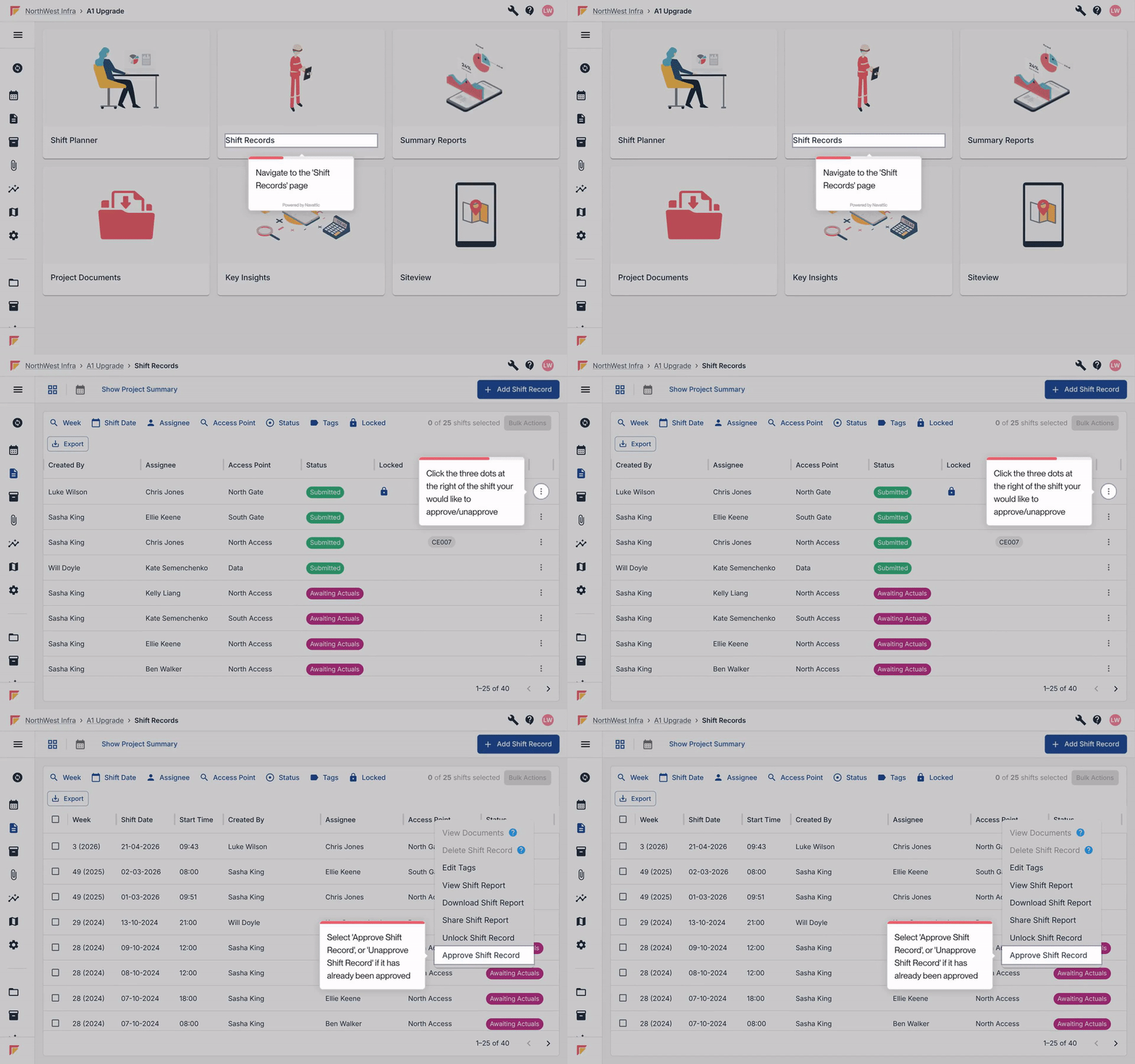
Open the relevant Project from your dashboard.
Navigate to the 'Shift Records' list.
On the Shift Record row you want to approve, click the 'Actions' menu (three-dot icon).
Select 'Approve Shift Record'.
A confirmation dialog will appear showing the Shift Record details. You can click through to view the full record if needed.
Click 'Approve' to confirm. The Shift Record will be approved and locked.
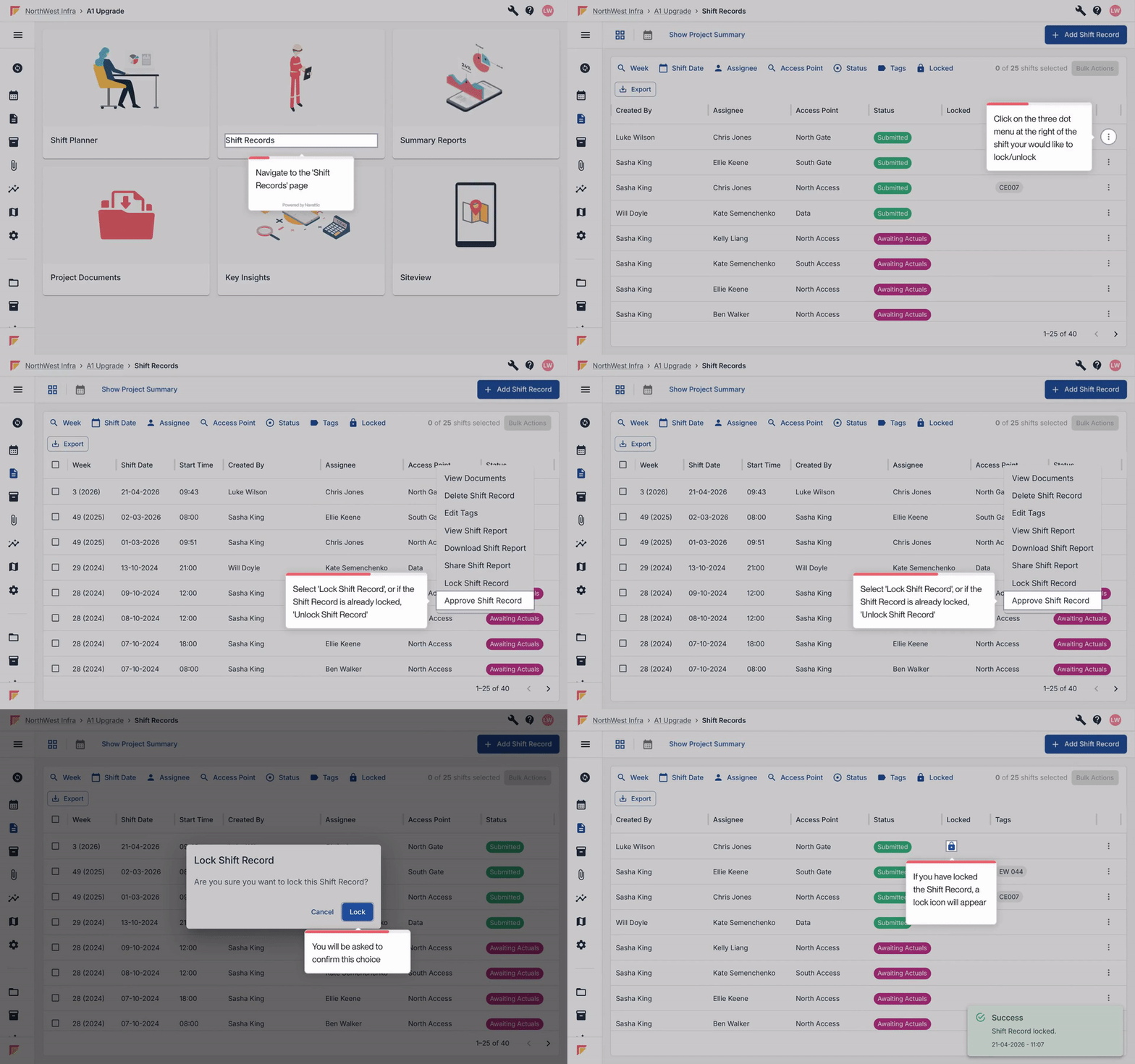
Any User who has been granted the lock/unlock inline permission can manually lock a Shift Record. This is independent of the approval workflow and is available on the Web App and the Mobile App.
Navigate to the 'Shift Records' list within your Project.
On the Shift Record row you want to lock, click the 'Actions' menu (three-dot icon).
Select 'Lock Shift Record'.
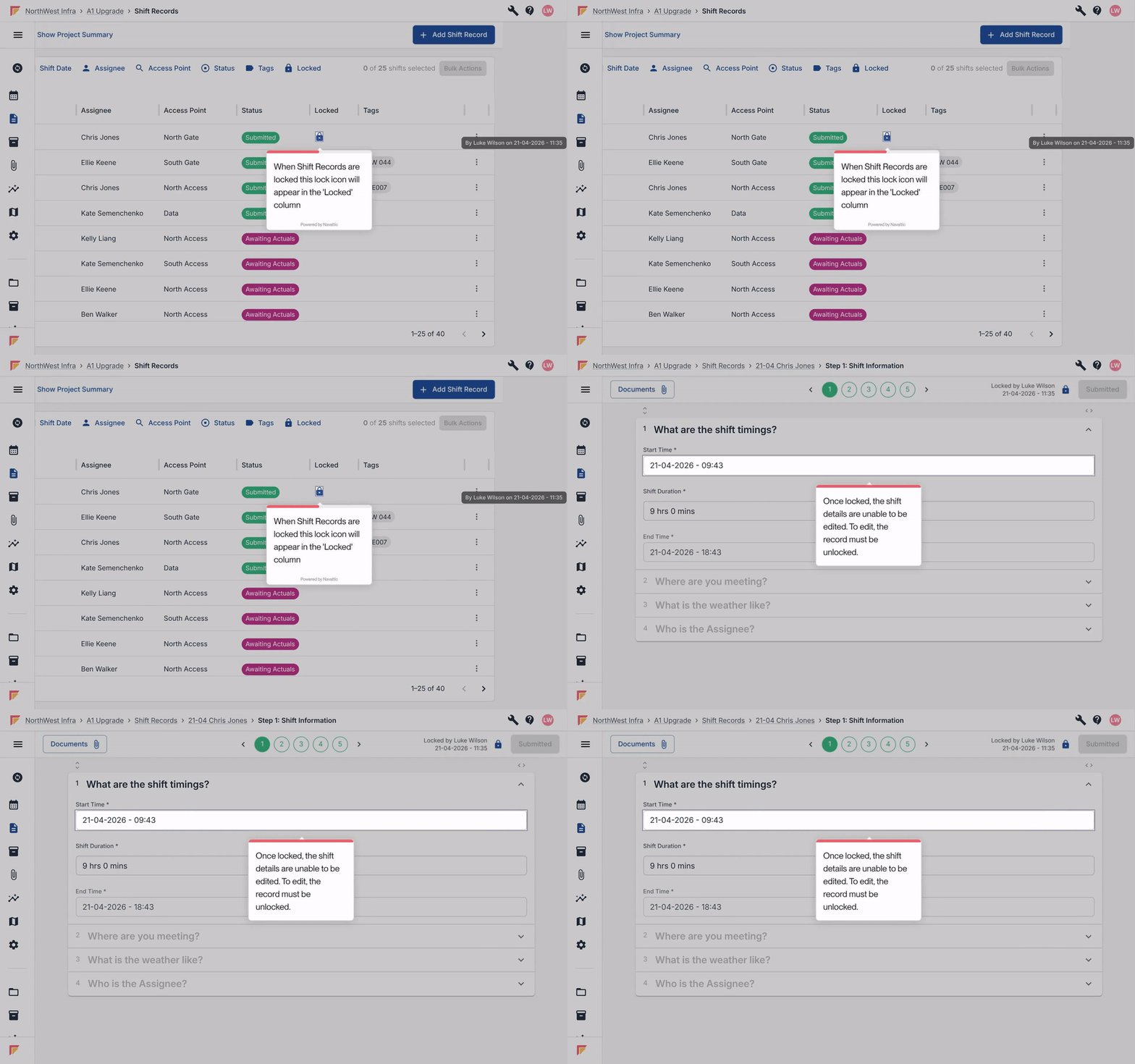
The Shift Record immediately enters view-only mode for all Users. A lock icon appears on the row to confirm the record is locked.
Please note: if you don't see 'Lock Shift Record' in the Actions menu, your account doesn't have the lock/unlock permission. Contact your Workspace Administrator to request access.
If a Shift Record was locked manually, any User with the lock/unlock permissions can unlock it.
Navigate to the 'Shift Records' list within your Project.
On the locked Shift Record row, click the 'Actions' menu (three-dot icon).
Select 'Unlock Shift Record'.
The Shift Record returns to its normal editable state and the lock icon is removed.
If the record was locked through an approval, you will need a Commercial Administrator to revoke the approval first.
When a Shift Record is locked, whether through approval or manual locking, it enters a view-only state for all Users, regardless of their normal editing permissions. This applies on both the Web App and the Mobile App.
Documents on a locked record:
Documents attached to a locked Shift Record remain fully viewable and downloadable, but cannot be modified.
On the Web App, the 'View Documents' button remains accessible from the Shift Record Overview. 'Upload', 'Edit', and 'Sign' actions are greyed out and disabled. A footer message explains that documents cannot be modified because the Shift Record is locked.
On the Mobile App, documents remain accessible via the paperclip button in the Overview and list card. The 'Add new documents' button is removed. Sign functionality is removed or greyed out.
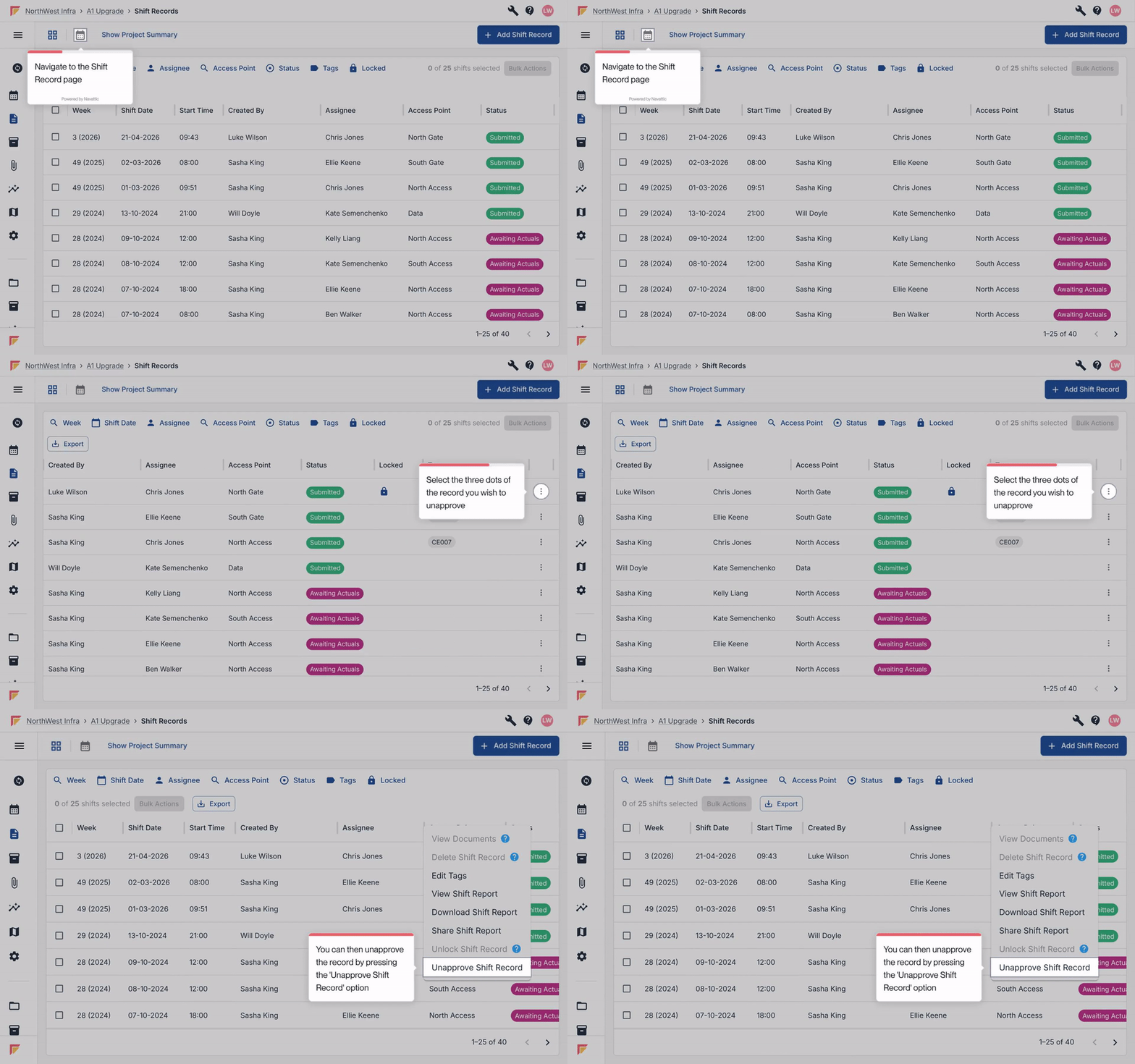
A Commercial Administrator can revoke an approval at any time from the Web App. This removes the approval and unlocks the record, making it editable again.
Your changes are not lost. On the Mobile App, if you make changes offline and the record is locked before your changes sync, you will see an error message with an option to email the User who locked it. Your changes stay on your device until the record is unlocked.
On the Web App, you will see a similar error message and the record will switch to view-only mode. Your unsaved changes remain visible in the form but cannot be saved until the record is unlocked.
Lock and approval activity is captured in the Compliance Detail Report. This includes the Lock State, the last Locked Date, who locked it, the Approval Status, the last Approved Date, and who approved it.
Every approval is a lock, but not every lock is an approval. Locking freezes a record. Approval is a commercial sign-off that also triggers a lock.
Approval locks the record. Approving a Shift Record automatically locks the entire record, making it view-only.
Locking does not change record status. A locked record keeps its original status (Draft, Submitted, etc.) and continues to appear normally in all reports and filters.
Approvals are web-only. Shift Record approval is not available on the Mobile App.
Unsaved changes are preserved. If a record is locked while you have unsaved changes, your edits are not lost. You can request the record be unlocked.
Permissions control access. Locking and unlocking require an inline permission granted per User. Approval is available to Commercial Administrators. All Users can view locked records in read-only mode.
If you need the lock/unlock inline permission enabled for your User account, contact your Workspace Administrator. For questions about how approvals are configured for your workspace, please contact Gather Support.
